How To Convert A Photo Into A Counted Cross Stitch Pattern
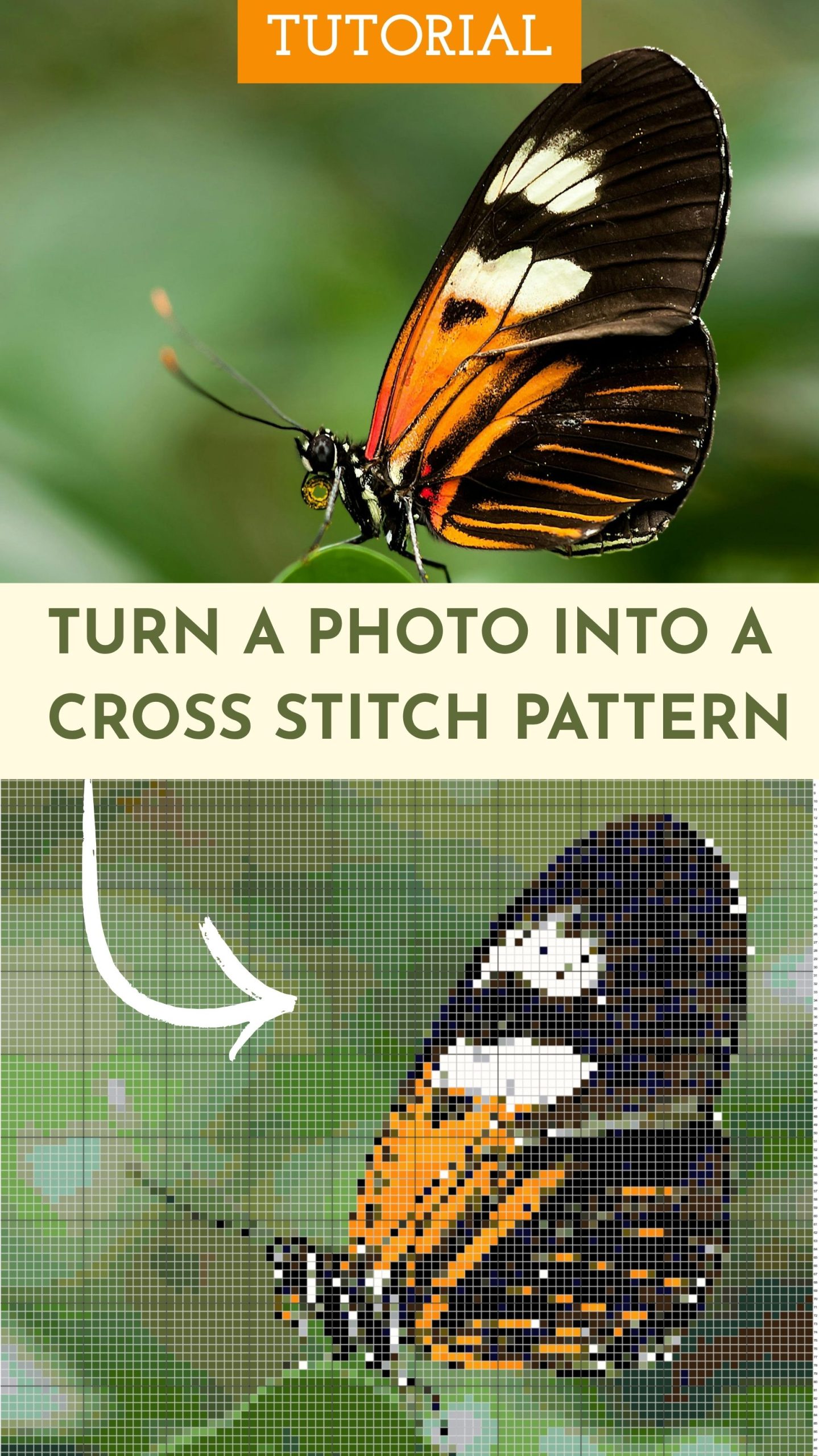
In this tutorial, I will show you a simple process for converting a photo into a counted cross stitch pattern. Starting with your own photo or image is a great way to customize projects and save time. Making a cross stitch pattern entirely from scratch can be challenging and tedious, so this method is a simple, easy way to speed up the process.
How To Convert A Photo Into A Cross Stitch Pattern
For this tutorial, I used an application called Stitchly, which is available on iOS. It requires a one-time purchase, but there are also many free applications online that are very similar. You can use the process I’m about to show you for any app you choose, as long as it can upload photos.
Keep reading or hop to the video tutorial.
Cross Stitch Pattern Makers
Plenty of options exist for pattern makers. Here are a few that I have personally tried and have found work well:
- Stitchly – one time purchase
- Stitch Fiddle – has a free and paid version
- Floss Cross – completely free
Check out my in-depth review comparing all of them if you want to learn more about each one.
Upload A Photo
Whether you created your own digital image or have a specific photo you want to use, the first thing you’ll want to do is upload it by selecting “Convert a photo.”

For this tutorial, I uploaded an image file of a digital illustration I made on my iPad. I kept the shapes and colors very basic because I wanted to keep the pattern simple. Simpler images generally produce the best results.
Here are some tips for selecting the best photos:
- Select a high-quality image that is clear and shows accurate subject colors.
- If an image has a lot of white space around it, crop it out because the software will include the background in the final design.
- For smaller, less detailed designs, choose simpler images.
- Always make sure the image you are using is not copyrighted!

Once you upload the photo, you’ll see a preview of what the generated pattern will look like. At this point, you’ll need to choose the fabric count you plan to use as well as the desired size of the finished piece.
If you uploaded an image with a white background you don’t want to stitch, select the transparent background option or remove the color entirely.
There may also be an option to select the number of colors for the pattern. Photo generators generally pull a lot of different colors by default, so I usually reduce the number as low as I can before the pattern detail drops substantially.
Sizing The Pattern

More detailed images require more stitches, so the finished design will likely need to be larger. However, another way to add more detail while keeping the dimensions smaller is to use a higher fabric thread count.
For example, if you’re using 14 count fabric, the design will need to be larger to include a good amount of detail. (For my particular design, 11 x 7 inches.) The same design and level of detail on 24-count fabric would only have to be 6.4 x 4 inches.
Play around with the thread count, colors, and stitch count until the preview matches the photo as closely as possible. But don’t worry, this won’t be the finished design. You’ll likely need to refine it more before you can use it!
Refining The Design

At this point, you’ll have a rough draft of a pattern. Now it’s time to refine the design a bit. Depending on the level of detail and the quality of the photo, you may have random spots of color that need to be removed or modified.
Select the floss palette to see all the embroidery floss colors that make up the pattern. Select colors and modify them as needed until you’re happy with the pattern. You can do this stitch by stitch or by entirely replacing or removing particular colors.

Most pattern makers will show you a list of all of the thread colors that are used in the pattern. Make sure to review this list and add or remove unnecessary colors. Sometimes it can be hard to tell just by looking at the colors in the cross stitch chart, so this is an easy way to double-check that you’ve corrected all the colors you want to.
Export The Pattern
Once you’re happy with your pattern, it’s time to export it! There are a variety of formats available, but the easiest way to make it printable is to download it as a PDF file.
Video Tutorial